Contents
show
Template Design in CorelDraw, Easy and Step by Step, Download Source File.
Hello Friends, Welcome to Corelclass.com In This Post I am Going To Teach you How To Create Template Design in CorelDraw. In This Project You Can Learn How To Design Template in CorelDraw Application in Easy Method. You can also Download Practice File in This Post. So Let’s Start To Learn This Project, Before Start I request you to Please Follow Given below step to Learn Properly step by step.
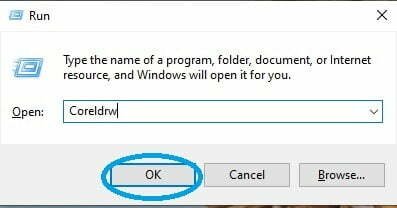
- Press Windows + R >To Open run Dialog Box.
- Type Coreldrw > As Run Command of Application
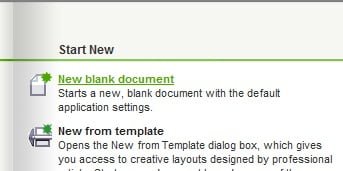
- Click at New Blank Document.
- Fill all information regarding New document.
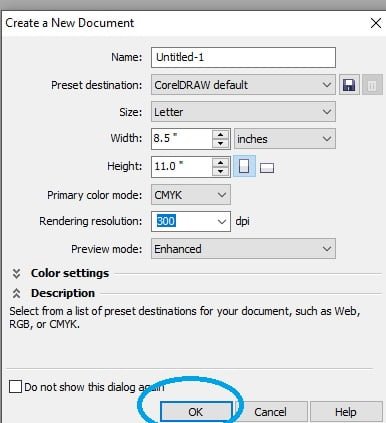
- Press OK.
- Double Click at Rectangle.
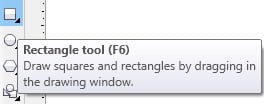
- Draw a Rectangle at Page > Rotate like this.
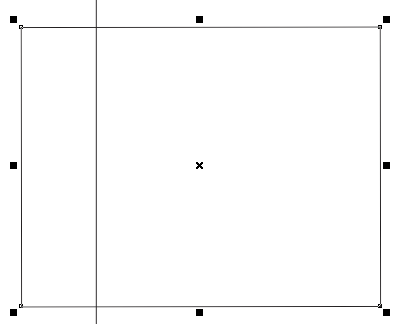
- Press F10 > To Curve the corner.
- Press Ctrl + C, Ctrl + V > To duplicate like this.
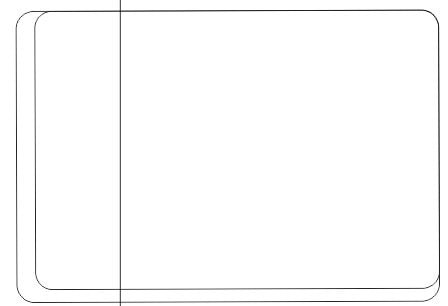
- Draw another Rectangle at Page > like this
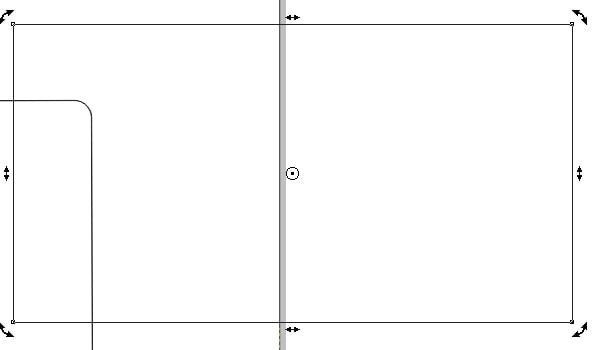
- Press F10 > Drag From corner > Round like this.
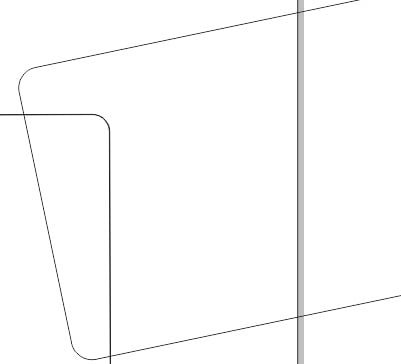
- Select both Rectangles > Fill color in rectangle > From color pallet.
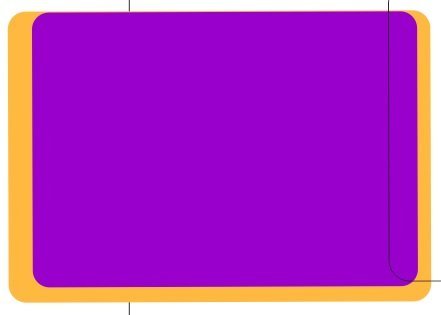
- Select Both Rectangles > Power Clip Rectangles > Something like this appear.
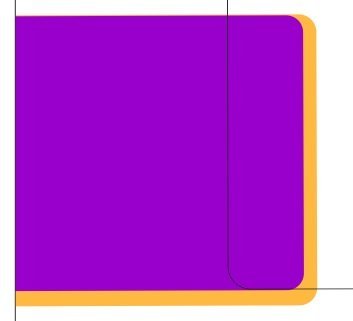
- Set picture in this Rectangle > From File.
- Select Rectangle and Picture > Set Properly > Power Clip both rectangle and picture > like this.

- Draw two like this > Power Clip.

- Draw Rectangle > Bottom of Picture.
- Put LOGO of institution.
- Type Institution Name like this.
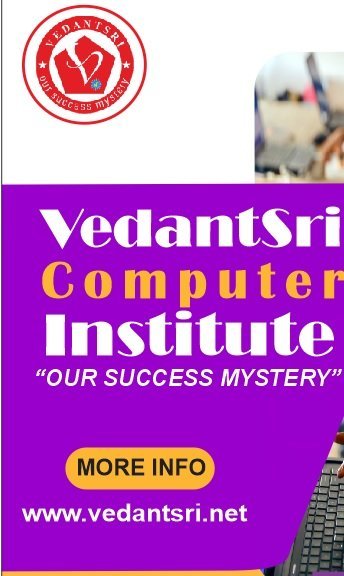
- Type Institute Information.

- Type Contact Information.

- Now Template is Ready.

Created and Explained by Sakshi Rawat
Graphic Designing VedantSri me seekhna chahte hain?
VedantSri Computer Institute, Varanasi — Durgakund aur Rathyatra, dono branch. Roz subah 7 se raat 8 baje tak khula.
WhatsApp · DurgakundWhatsApp · RathyatraSaare course, fees aur syllabus: VedantSri Varanasi
VedantSri par Graphic Designing ka naya content
- CorelDraw Basic Tool Online TestCorelDraw Basic Tool Online Test Useful Link:-CorelDraw Course Fees, Duration, Scope, Syllabus, Admission, Institutes & Jobs in Varanasi...
- CorelDraw Basic Online TestCorelDraw Basic Online Test Useful Link:-CorelDraw Course Fees, Duration, Scope, Syllabus, Admission, Institutes & Jobs in Varanasi Are...
- CorelDraw Online Test 2026CorelDraw Online Test 2026 Useful Link:-CorelDraw Course Fees, Duration, Scope, Syllabus, Admission, Institutes & Jobs in Varanasi CorelDraw...